
Squarespace makes global styling easy and targeted styling unnecessarily hard. One of the most common frustrations is wanting to visually highlight one navigation item without touching the rest of the menu.
In this example, we’re styling a single dropdown menu item so it behaves like a call-to-action: white background, coloured text and a subtle hover state. No JavaScript. No fragile nth-child selectors. Just clean, resilient CSS.
The problem with the typical position-based styling
A lot of Squarespace tutorials recommend styling menu items by position, for example “the third link in the dropdown”. That approach fails the moment you reorder the menu, add a new page or A/B test structure
This code is useful as it:
Targets the exact link, not “third item in the list”
Survives menu reordering
Survives adding/removing pages
Doesn’t affect mobile nav unless you explicitly want it to
The CSS Solution
Add the following CSS to Design → Custom CSS in Squarespace and paste the following, replacing the URLs with your own:
/* Dropdown: Highlight a specific link */
.header-nav .header-nav-item a[href="/link-name-here"] {
  background-color: #ffffff;
  color: #0b5cff;
  padding: 8px 14px;
  border-radius: 4px;
}

/* Hover state */
.header-nav .header-nav-item a[href="/link-name-here"]:hover {
  background-color: #f2f6ff;
  color: #0b5cff;
}
Check out our library of code snippets and site enhancements.

Learn how to make a Squarespace Archive Block dropdown full width with a simple CSS snippet. Fix narrow blog category menus and improve dropdown usability.
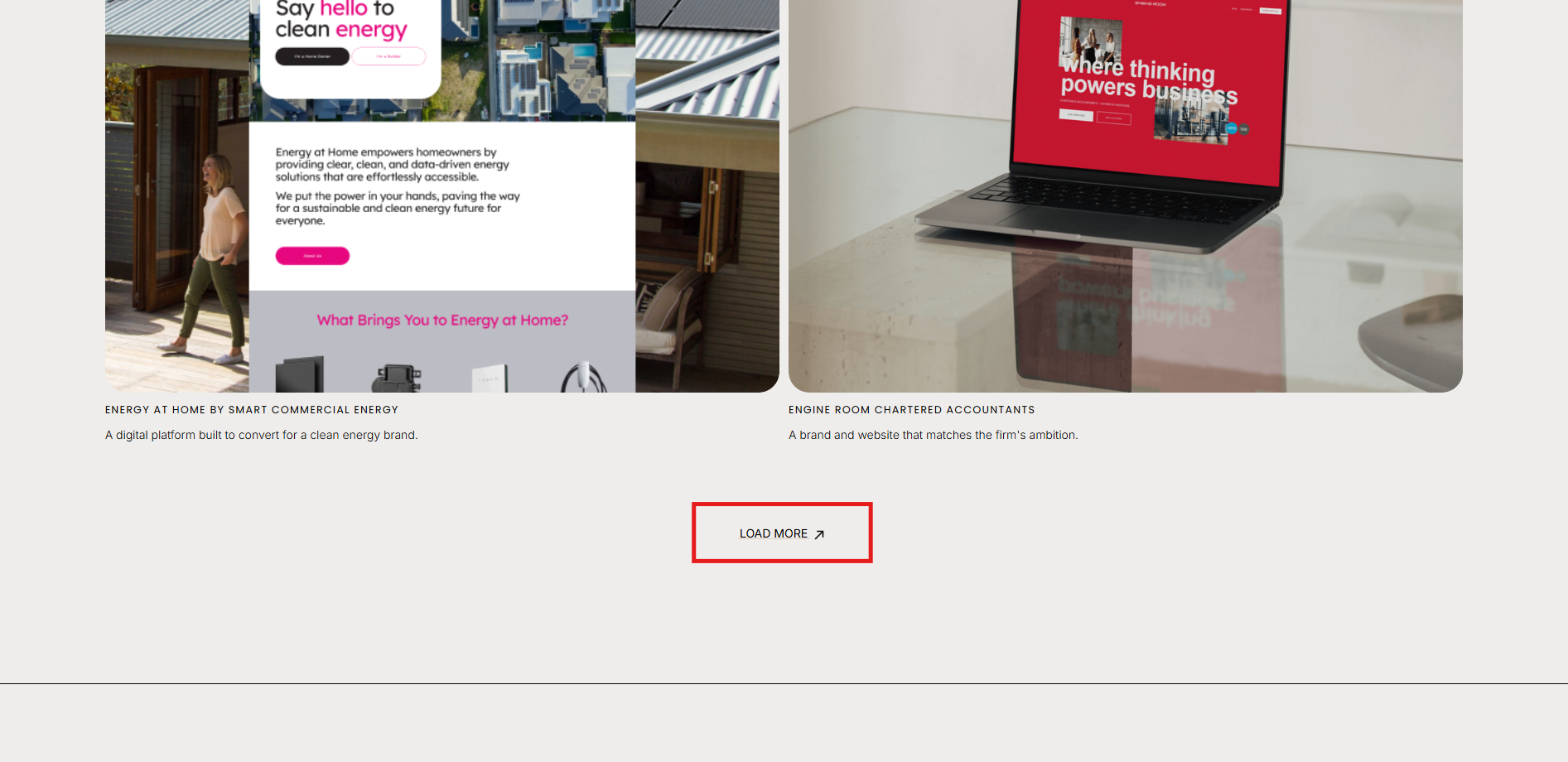
How to show / hide / reveal a Portfolio Section when you click a link or button in Squarespace. This code works when you cannot use the Anchor links functionality.
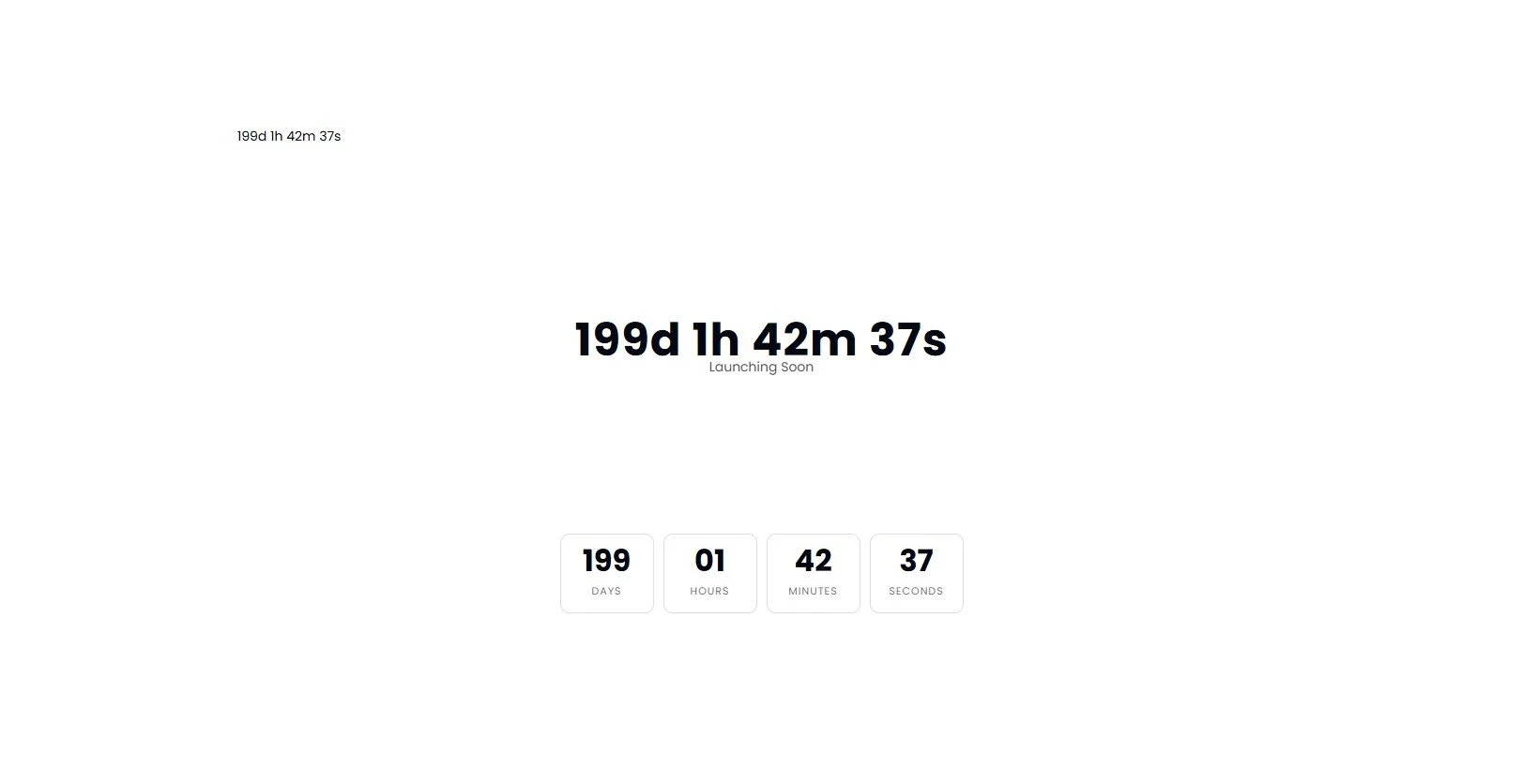
Add a countdown timer anywhere on your Squarespace page using a simple Code Block. Drive urgency for launches, promotions and events.

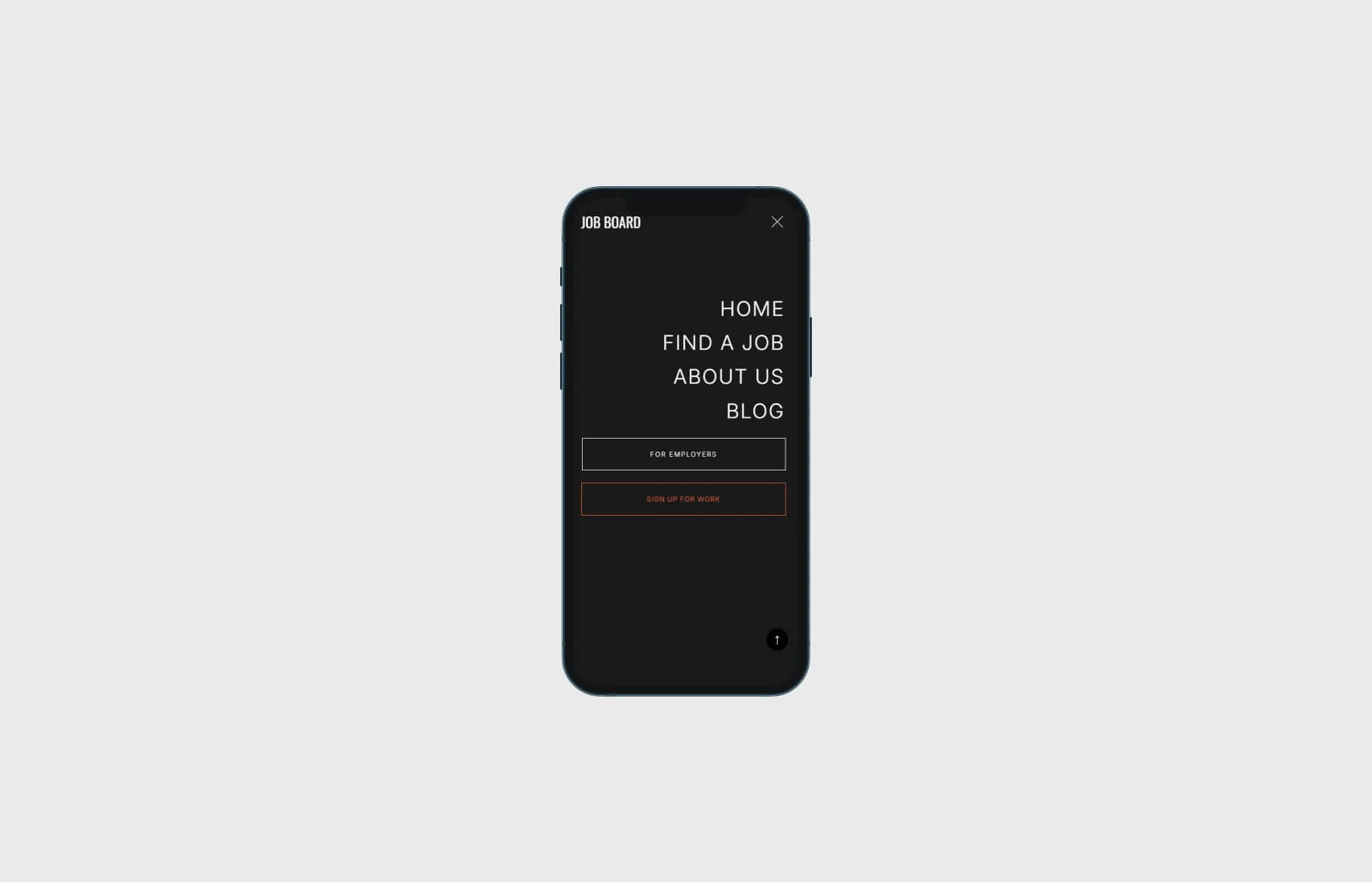


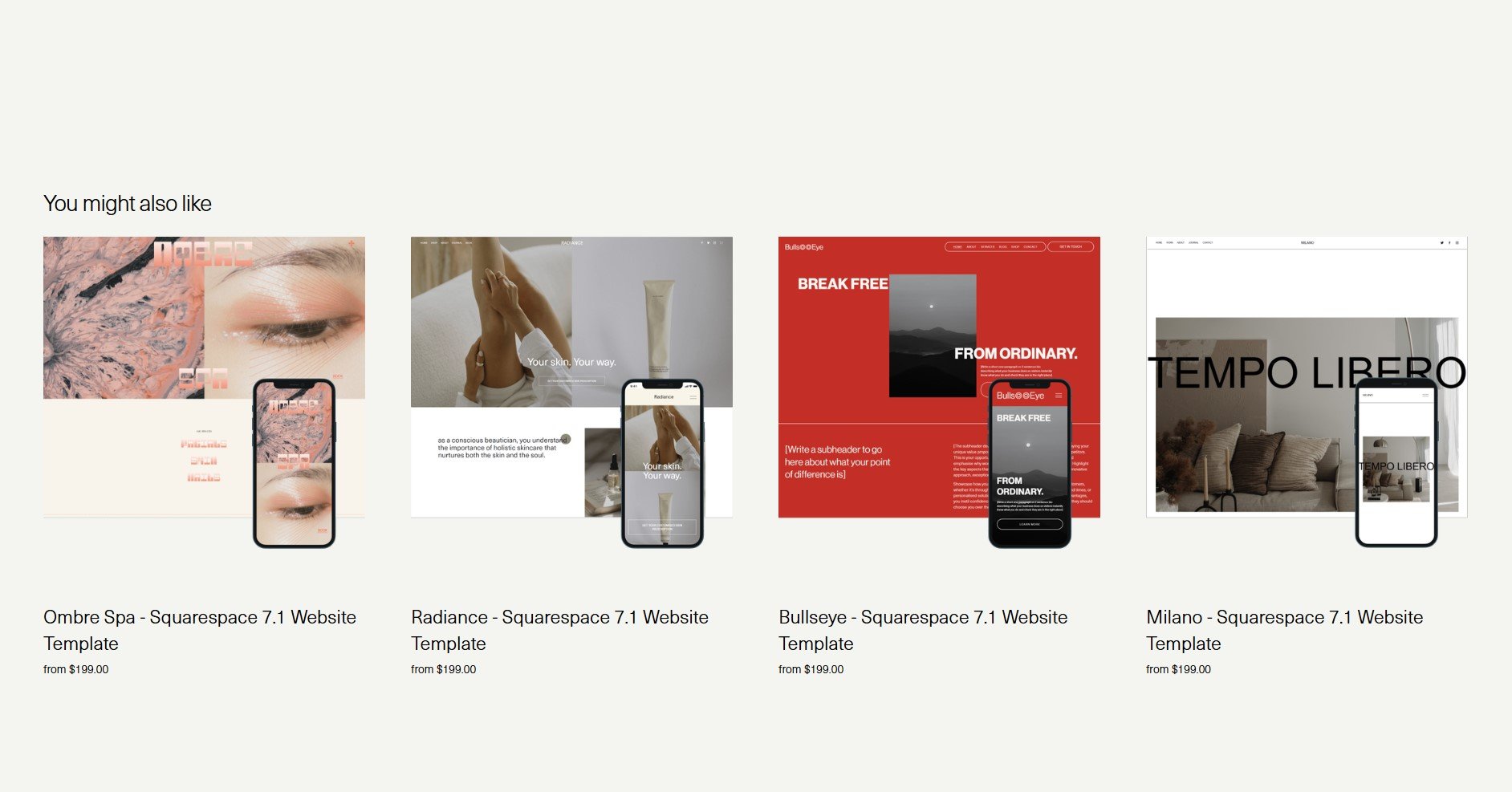
Learn how to display only four related products in a single row on your Squarespace Commerce site using a quick CSS solution


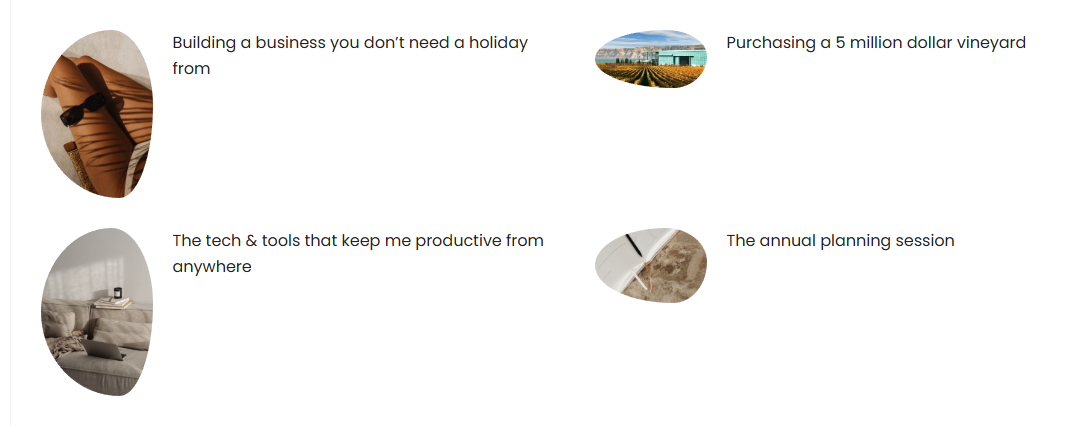
Learn how to apply irregular, organic image frames in Squarespace with a simple CSS snippet. Enhance your site's aesthetic with custom shapes.

Optimise your Squarespace shop for mobile: use custom CSS to stack categories and filters for a cleaner, more user-friendly experience.